Switching to Claude?
Everybody is talking about Claude but you are still on ChatGPT. Claude is Anthropic’s AI chat assistant, the same category of tool as ChatGPT, just built by a different company with a different default personality and different strengths. Here’s where the FOMO ends and how to use it like a pro.
I teach Agentic AI on LinkedIn Learning (my course is specifically on AI agents and agentic memory, so I think about this a lot), and the setup gap is the thing I keep coming back to. People open Claude, type something, get an answer, close the tab. Meanwhile the features that would change the whole experience are sitting right there, untouched.
Here is what to do in week one. Stay to the end, I explain the 3 parts of Claude in plain speak and what to use when.
How do I switch from ChatGPT to Claude?
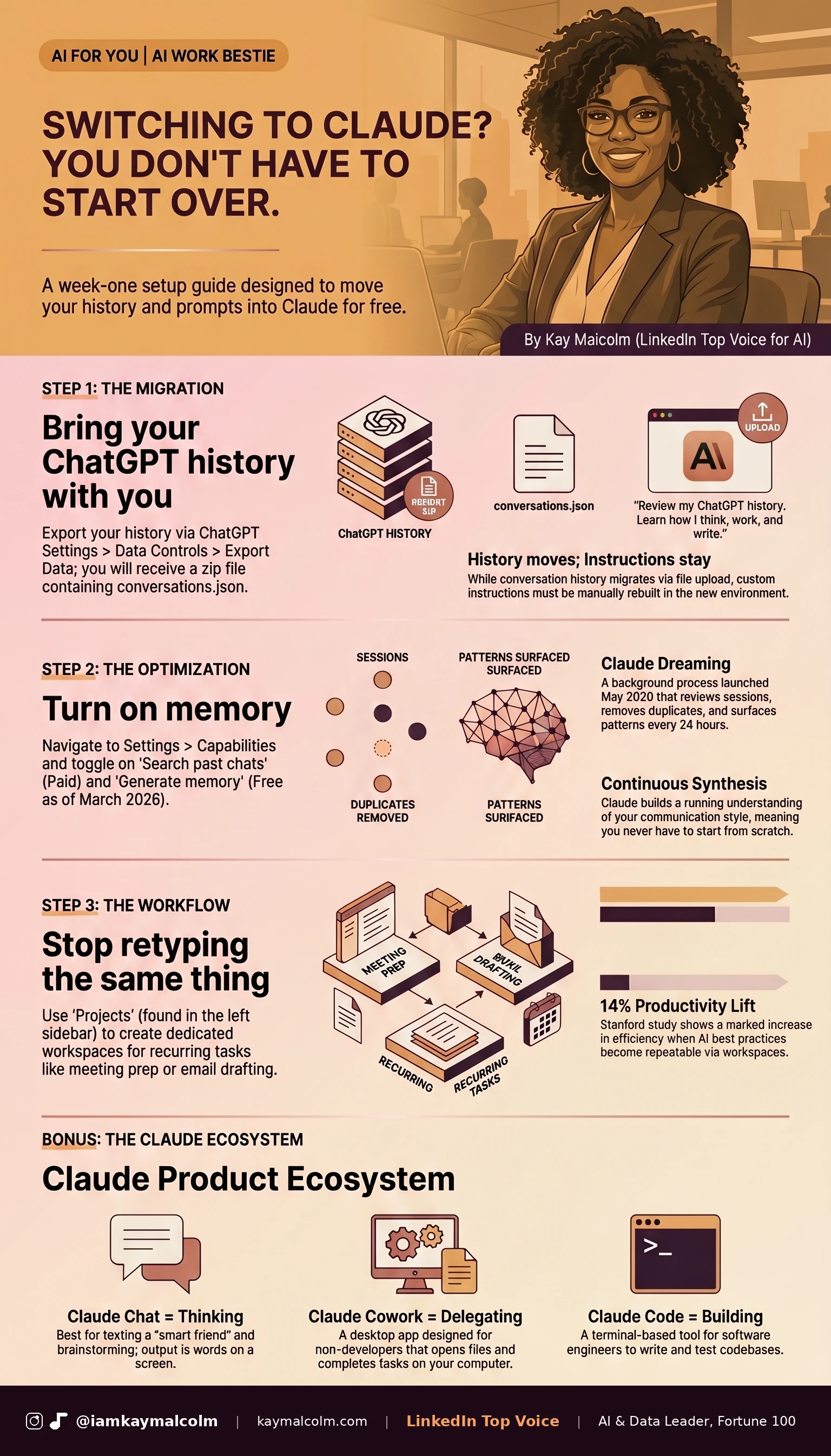
Bring your history over, turn on memory, and move your repeat tasks into Projects. Three steps, done in week one.
1. Bring your ChatGPT history with you
If you have been using ChatGPT for any stretch of time, you have already trained an AI to understand how you think. That work does not have to stay with OpenAI.
Here is how to move it:

Go to ChatGPT, then Settings, then Data Controls, then Export Data. ChatGPT will email you a download link, usually within 24 hours. Inside the zip file is a file called conversations.json. That is your full history.
Once you have it, upload it into Claude and say:
“Review my ChatGPT history. Learn how I think, work, and write. Then update your memory moving forward.”
Claude cannot do a native migration, but it can read the file, extract your patterns, and use that as the starting point for its memory. You are catching Claude up on years of how you operate. (I did this when I started switching over, and it made a noticeable difference in how quickly Claude understood my context.)
If the file feels unwieldy, tools like ai-migrator and SwitchboardAI will handle the conversion for you. Your side of a ChatGPT conversation is roughly 3% of the total data, so these tools strip out a lot of noise.
One caveat: the export does not include your custom instructions or project-level prompts. Those need to be rebuilt manually. Your conversation history makes the trip. Your system configurations need to be set up fresh on Claude’s end.
2. Turn on memory (and understand what you’re enabling)
Go to Settings, then Capabilities. You will see two toggles:
- Search and reference past chats
- Generate memory from chat history
Turn both on.
Here is what happens: Claude starts building a running synthesis of your conversations, updated every 24 hours. It learns how you communicate, what you work on, what you care about, and carries that forward into every new conversation. You stop starting from scratch every single time. (I know that sounds like a small thing. It is not and the more you use it, it will get annoying, trust.)
The “search past chats” toggle is on paid plans (I’m on Pro, I kept my free version of ChatGPT and use an enterprise ChatGPT at work). Memory generation is available to free accounts as of March 2026. There is no reason to leave it off.
One more thing worth knowing: Anthropic launched something called Claude Dreaming in May 2026. It is a background process that reviews your past sessions, removes duplicates, and surfaces patterns over time. You do not have to do anything. Claude is maintaining your context while you are not even using it. This is only available to a limited group but will release to all of us eventually so go ahead and get ready and turn memory on.
You can pause memory any time. Claude keeps what it already knows but stops building. You are always in control.

3. Stop retyping the same thing (use Projects instead)
For every recurring task you hand Claude, create a Project for it.
A Project is a dedicated workspace inside Claude where you write your standing instructions once. Claude loads them automatically every time you open that project. No retyping. No re-explaining. You just show up.
Go to claude.ai and look for Projects in the left sidebar. Create one for each workflow that is eating your time:
- Meeting prep: “Summarize this agenda, flag any gaps, and draft follow-up questions. Keep it under one page.”
- Email drafts: “Write a reply that is professional but direct, under 150 words, no corporate filler.”
- Document summaries: “Pull out the key points, who needs to act, and what is still missing.”
Your instructions sit at the top of each project. Every conversation inside it starts with Claude already knowing what you need. You open it, paste your document or agenda, and go.
MIT found that reusable prompt structures cut task completion time by 63%. Stanford found a 14% productivity lift when best practices become repeatable. As someone who teaches this for a living, those numbers make complete sense. Projects are how you make that happen inside Claude, not in some notes app you will forget to update.
Bonus: Claude Chat, Cowork, and Code (which one is for you)
Since I promised a plain-English breakdown, here it is.
Claude Chat is what you are using right now. Think of it like texting back and forth with a really smart friend. You ask questions, it answers. You share a document, it helps you think through it. When the conversation ends, nothing changed out in the world. You got words on a screen, and that is useful. It is just good to know what you are working with.
Claude Cowork lives inside the Claude desktop app and does things on your computer. It can open your files, move things around, and complete tasks while you go do something else. Think of it like hiring a digital assistant who can do the clicking for you. Built for non-developers, nothing to install. If you have ever thought “I wish I could just hand this off” about something repetitive on your computer, Cowork is the one to watch. (The first time I saw it moving files and renaming things on its own I had to sit with my feelings for a second.)
Claude Code is for software engineers. It runs in a terminal, reads your entire codebase, writes code, runs tests, and fixes errors. If you have never heard of a terminal, this one is not for you, and that is completely fine. Different tool, different job.
The short version: Chat is for thinking with Claude. Cowork is for delegating the work itself. Code is for building.
For most of you reading AI For You, Chat is where you live right now. Cowork is worth watching as you start automating the boring desk work. Code belongs to your engineering team.

One last thing
Real talk? The biggest Claude users I know are not the most technical people in the room. They just did the setup.
Turn on the memory settings. Bring your history over. Write down the prompts you keep retyping, even if it is just three to start.
As a LinkedIn Top Voice for AI, that is my whole recommendation. Start there.
If it still is not clicking after that, find me on LinkedIn and let’s figure it out together.
VP @ Oracle | LinkedIn Top Voice for AI | LinkedIn Learning Instructor | Views are my own
AI For You is a weekly newsletter for corporate women (and yes, the guys reading this too, welcome) navigating careers in the AI era. Real tools, real context, no tech background required.