You don't need more AI tools.
If AI still feels like extra work, not less… this is why. Here’s the thing, people don’t have a tool problem, they have a “what am I trying to solve?” problem.
Before you download anything else, let me show you what works in real life and the only place I’d tell you to start. Your AI stack is simply the small set of tools you open and use for real work, not the pile of apps sitting on your phone that you downloaded once and forgot.
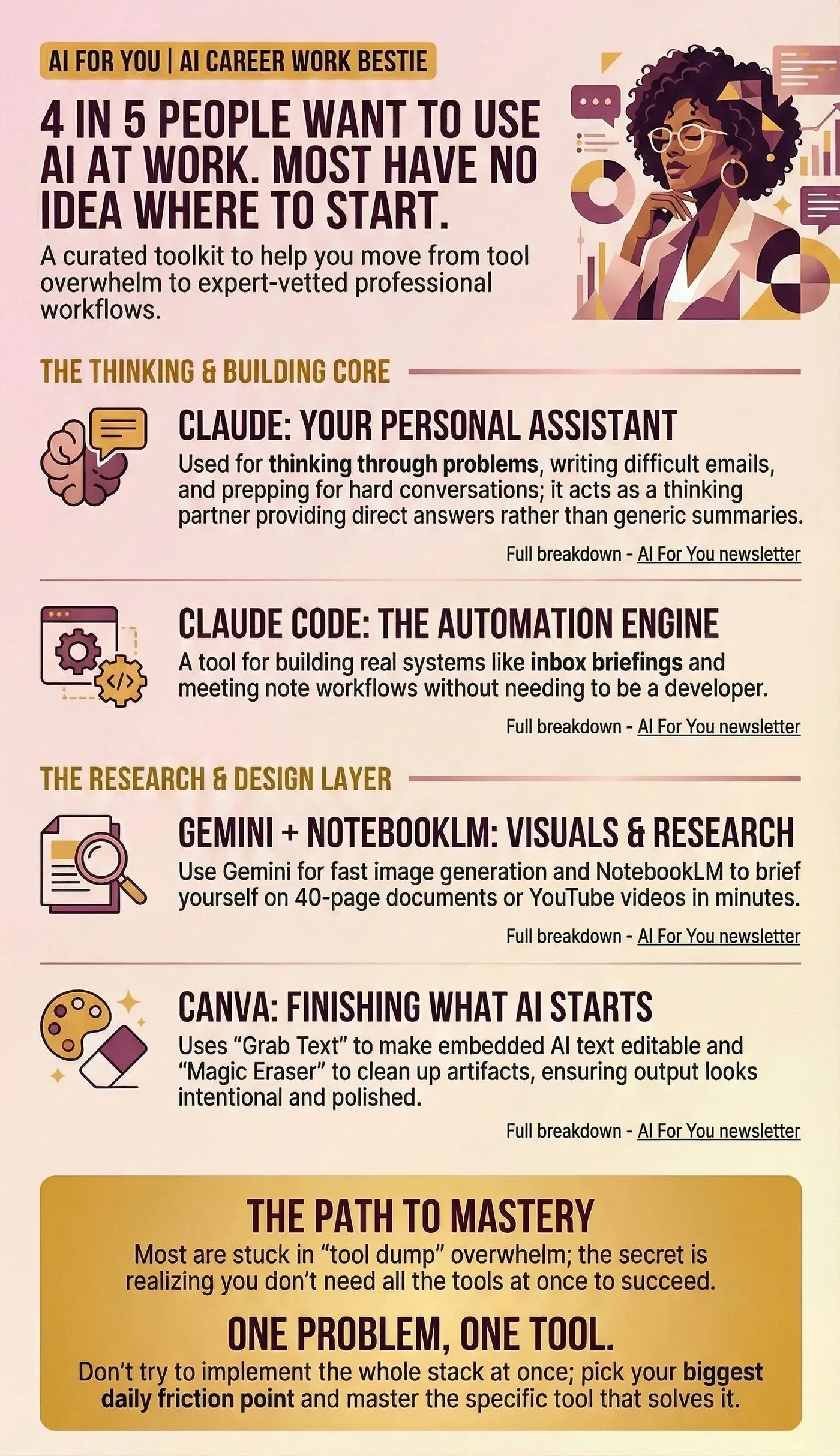
Scroll down ⬇️ Five tools, what each one does, and the one I would tell you to start with.
I’m going to show you what’s in my AI stack. The real one. What I open, what I use, and why I kept each one after trying approximately a thousand things.
Because here’s the thing: the AI Bros either give you a list of 47 apps you’ll never use, or it’s clearly written by someone who installed them for a screenshot and never used them in a real job or workflow. Neither of those is useful when you’re a working woman with a full calendar, practices to drive to and zero time for trial and error, yet alone drink your water, text back your mom or whatever is on your plate.
I manage the Oracle AI database product at Oracle. I teach AI Agents on LinkedIn Learning. And I’m a working woman with a real schedule and zero patience for things that don’t save time. Everything on this list earned its spot.

What’s the stack, Kay?
Let’s get right to it. This is the last one in my stack but its the one I told you about in my instagram post. It’s the one you came here for.
1️⃣ Canva - finishing what AI starts
This is the piece most people leave out, and it’s the reason AI-generated images and infographics look “off” when people share them.
Here’s the thing about AI-generated visuals: they’re fast, but something about them is always…not quite right. Gemini gives me a great image and then I open it in Canva to make it mine. NotebookLM generates an infographic and then I open it in Canva using their AI Tools to fix the text and remove whatever AI decided to add that I didn’t ask for. And the AI tools inside Canva are what make that finishing step fast.
⌚️ Time to learn the two features that matter: 15 minutes
💰 Cost: $15/month for AI Tools
🤔 Why I recommend it: AI-generated output is raw material, not finished work. Canva is how you finish it and prevent it from becoming AI slop.
🤩 What you’ll be able to do: take any AI-generated image or infographic and make it look like it was custom made. No one will be able to tell it started with AI. Or even if they did, there’s no garbled text, you choose your fonts, it really is like magic.
GRAB TEXT: takes all the text embedded in an image or infographic and makes it editable. AI-generated infographics bake the text right in: you can’t click it, you can’t change it. Grab Text pulls it all out so you can fix whatever needs fixing without starting over.
MAGIC ERASER: cleans up whatever AI decided to add that you didn’t ask for. Random logos, weird background objects, errant elements. Select and erase. Clean in seconds.
The combination of Gemini or NotebookLM for generation and Canva for finishing is what makes the output look intentional instead of “I just exported whatever AI gave me.”
And since you’re here, the rest of the stack.
2️⃣ Claude - my personal assistant for everything
This is my number one. If I could only keep one tool from this entire list, it’s this one.
I use it for thinking through problems I’m stuck on. For writing things I’m dreading. For planning my week. For prepping for hard conversations. For drafting emails at 10pm when my brain is done but my inbox isn’t.
It’s not a search engine. It’s not Google. It’s more like texting a really smart, always-available colleague who knows your context and gives you a direct answer.
⌚️ Time to start: 5 minutes
💰 Cost: $20/month - Pro Version
🤔 Why I recommend it: the depth of thinking it applies to complex problems is better than any alternative I’ve tried
🤩 What you’ll be able to do: have a thinking partner for anything you’re working on. Stop staring at a blank page.

There is a free version at claude.ai. Start there. Do I still use ChatGPT? I had the pro version of ChatGPT for over 2 years, I exported my memories and downgraded my account. Claude and Claude Code can be used interchangeably for the most part with ChatGPT and Codex if that’s the stack you are using at work. I love the Google Chrome integration with Claude Browser and the NotebookLM MCP server, hence my decision. (That’s a future post)
3️⃣ Claude Code - when I want to build something
This one is for when I want to create something, not just use something.
Claude Code is part of Claude, so it’s technically not an additional tool. But this y’all, this tool is my boyfriend, I call him Claudie, my AI assistant that lives on my laptop. This is what I’ve been using to build real automations: my inbox briefing system, my meeting notes workflow, the apps I’ve built by vibe coding, the infrastructure that keeps my AI stack from starting over every session.
I won’t pretend this one has no learning curve. It does. But if you’re curious about what building with AI looks like versus just prompting it, this is the entry point.
⌚️ When to start: after you’re comfortable with Claude Desktop
💰 Cost: part of Claude Pro subscription
🤔 Why I recommend it: the things I’ve built with it have saved more time than any other tool, because I’m not just speeding up existing tasks. I’m automating them entirely.
🤩 What you’ll be able to do: build real automations without being a developer. Start small.
4️⃣ Gemini + NotebookLM - visuals and research, fast
Two tools, one slot, both free.
Gemini: when I need a visual for a post, a presentation, or a creative project and I don’t want to spend an hour fighting a design tool. Fast. Good enough for social content and images within presentations. I always run the output through Canva before I use it in real life.
NotebookLM: upload a document, a PDF, a YouTube video, a Google Doc, then have a full conversation with it. Do deep research on a topic. Ask it to summarize. Ask it specific questions. Ask it to explain something in plain English. Have it generate an infographic. Create a study guide. Useful also to learn something fast. If I’m on a plane getting ready to go to a customer, I might use it to beef up on a topic.
⌚️ Time to learn: 10 minutes to get your first result from each
💰 Cost: I use the free. I had the pro because I was generating lots of infographics but I have some workarounds for that. Free is good enough.
🤔 Why I recommend them together: they live in the same part of my workflow: creating content and getting up to speed fast
🤩 What you’ll be able to do: visuals in seconds, and prep for any meeting without reading the whole 40-page deck
NOTEBOOKLM TOOL TO TRY FIRST:
Infographic. Ask Claude to generate a prompt for an infographic you are trying to build. Upload your brand colors and watch it go.

Kay, I’m overwhelmed, I have no time to myself. I can’t make time for this.
I feel you. This time will help make you more efficient so take one hour and install it. Tell your family you have a headache and go in the room with your laptop and install it.
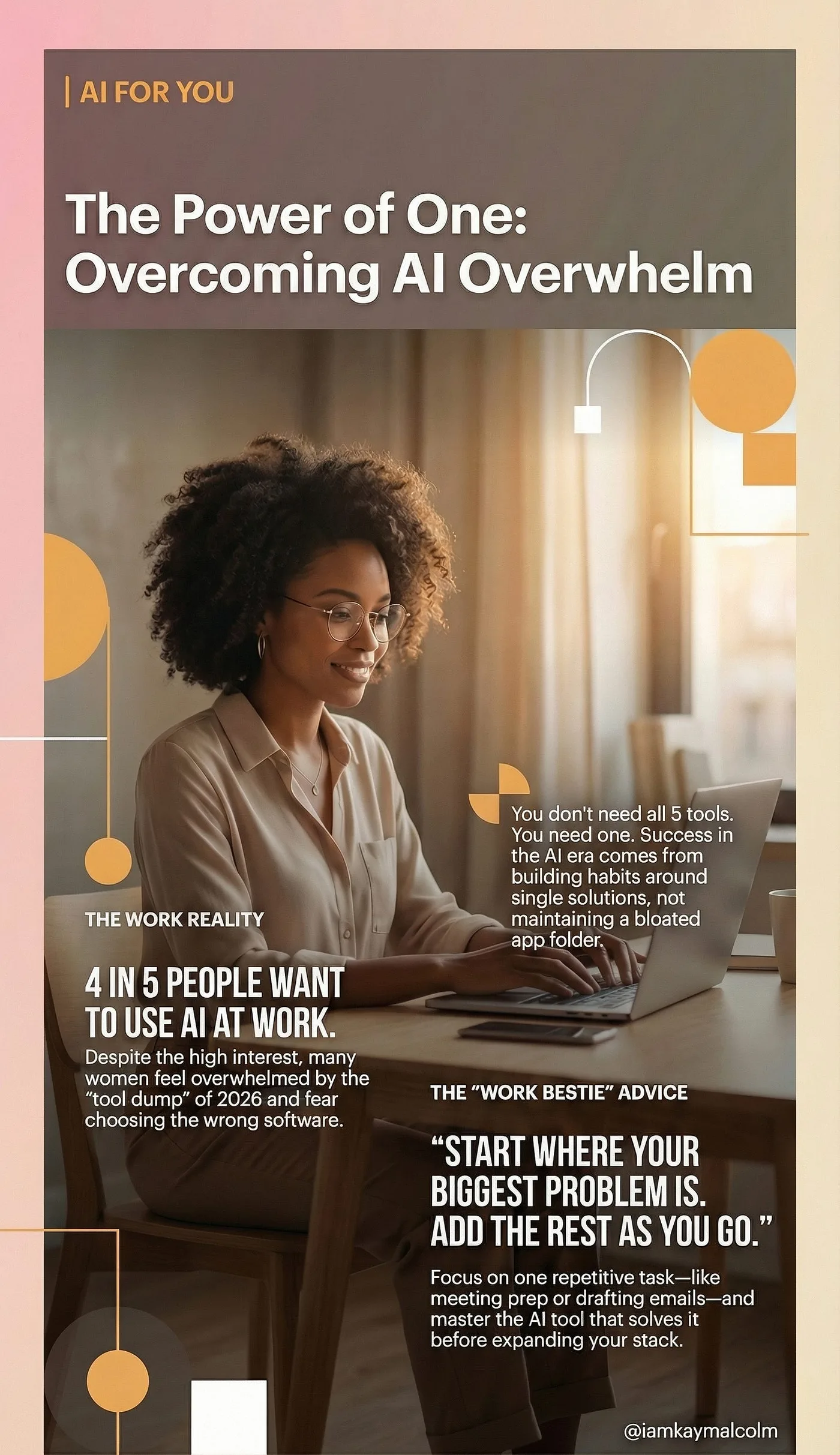
You don’t need to start with all 4. I didn’t do that. That’s how you end up overwhelmed and back to doing everything manually, which defeats the whole point.
Start with Claude. Get comfortable with it for a couple of weeks. Add Gemini when you need something visual, and NotebookLM when you have something you need to learn fast or a visual to create. Add Canva right behind them; that’s what makes the output look finished (Magic Layer and Magic Eraser are the two features in Canva to learn first). Add Claude Code and integrate it with VS Code when you’re ready to build. I’ll have some stuff on that later.
The women (and men, hubby, I didn’t forget you!) in my life who have built solid AI habits didn’t do it by learning everything at once. They picked one thing, used it until it became automatic, then added the next. That’s the whole approach.
Come tell me on LinkedIn where you are right now: what’s in your stack, even if it’s just one thing? No judgment. I want to know what’s working and what other questions you have.
VP @ Oracle | LinkedIn Top Voice for AI | LinkedIn Learning Instructor | Views are my own
AI For You is a weekly newsletter for corporate women (and yes, the guys reading this too, welcome) navigating careers in the AI era. Real tools, real context, no tech background required.